

Sibelius 2 Power tools
These pages refer solely to the upgrade from Sibelius 1.x to Sibelius 2. All the improvements and many more are incorporated in the more recent upgrade to Sibelius 6.
Properties
Any object's properties are now shown in a permanent window above the keypad, so that you can quickly view and edit them, including adjusting their position numerically. The window is split into collapsible panels, which can be opened or closed in any combination. You can split the Properties window from the keypad, or hide it completely.
You can even edit the common properties of multiple objects simultaneously, e.g. to alter the speed of multiple trills, or change the format of all triplets in a score.
Timecode & score duration
Sibelius 2 calculates and displays precise timecode (time position from the start of the score) above barlines - invaluable for film/TV scoring, or for any work requiring timings. It also calculates the exact duration of the score, and prints it on the last page.
Timecode and score duration automatically take into account all metronome marks, rits/accels, fermatas (pauses), and even tempo text such as 'Allegro' - instantly updating whenever you change any of these. Display formats include seconds, tenths of a second, and various frame rates.
(Note that this feature does not display or sync to incoming SMPTE or MTC.)
Filter & find
There are new filters to select lyrics, dynamics, chord symbols, guitar frames, tuplets, slurs, etc. There are also filters for separating individual players from combined staves, e.g. to split a Flute 1+2 part into separate Flute 1 and Flute 2 parts.
The new Advanced Filter dialog lets you filter more objects, e.g. bar rests, lines, and even specific text (e.g. 'mute') in almost any combination.
The new Find and Find Next options allow you to select individual objects in turn rather than all at once. There's also a special plug-in to find particular melodic and rhythmic motifs.
Hiding objects
Any object in your score can now be hidden, e.g. notes, hairpins, text - particularly useful for hiding playback indications (which still play when hidden). You can view hidden objects in gray, or simply hide them altogether.
You can even mark up hidden cues in the score which only appear when parts are extracted.
Staff spacing
Adjust staff spacing throughout a score in a single operation: just triple-click the staff, then drag it, or use the arrow keys for fine adjustments. You can also move individual staves or systems without affecting the position of other ones on the page, and reset staves to default spacing. Switch on the new rulers (see picture) for complete control.
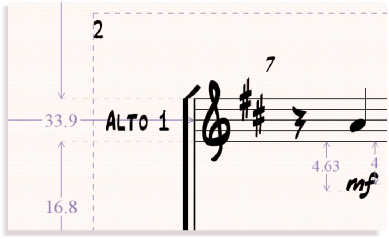
Three kinds of rulers: selection and object rulers show the position of objects, and staff rulers show the distance between staves, in spaces, mm, inches, or points. This score uses the new Inkpen2 font, which includes handwritten text
Voices
The concept of voices now extends to nearly every object, not just notes and rests, so you can specify which voice or voices an object applies to. For example, if you put mf into voice 2, it will only affect voice 2 notes during playback.
You can change the voice of a selected object or passage, merge notes in more than one voice into a single voice, or split notes into separate voices with a single keypress - invaluable for cleaning up Flexi-time and MIDI files.
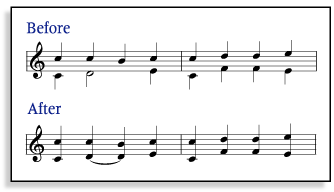 |
Merge or split voices with a single keypress |
Auto-save
Sibelius 2 automatically saves a copy of the current file in a special folder every few minutes in case of computer or power failure. Auto-saved scores are automatically restored next time you start Sibelius.
Plug-ins
Sibelius now has 37 plug-ins, including: add automatic fingerings to brass/stringed instruments; find motifs; number beats; melodic inversion; and pitch mapping. Many other plug-ins have also been improved. Plug-ins are now organized into submenus, which you can reorganize yourself.
Slurs
When slurs are split between systems, you can now adjust the position and shape of each half independently. New keyboard shortcuts make it even easier to adjust the position of slurs and other lines.
Default positions
Because you can now create objects from the keyboard without pointing with the mouse, virtually all objects now have intelligent default vertical and horizontal positions. You can adjust these from the extensive new Default Positions dialog, e.g. to make hairpins go above rather than below the staff in vocal music.
Quick links
Take a tour
Take a tour of the vast number of new features and enhancements in Sibelius 2.
Power tools
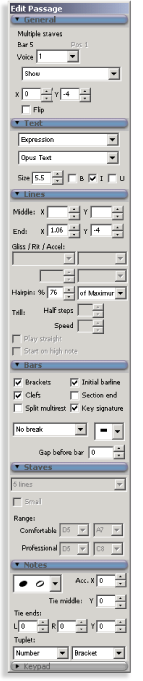
The new Properties window allows you to change the attributes of one or more objects via seven collapsible panels. The top panel includes the bar number and instrument name - invaluable when working on large scores
